 RadioCloud
Configure your radio,
right in the browser on any OS
RadioCloud is a set of radio tools built as a personal hobby project. The first one is a TX frequency lock: plug in the programming cable and set the transmit range right on this page. There is nothing to install — it works in the browser on any operating system.
Choose your radio
Each model is configured differently, so each has its own tool. See all supported radios and features →
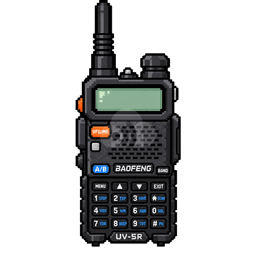
UV-5RBaofeng
VFO limits · Enter the VHF/UHF transmit lower and upper limits directly, or turn off transmit per band.
Supported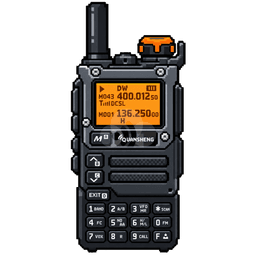
UV-K5 seriesQuansheng
F-Lock · Pick one of the F-Lock presets (CE, FCC, GB, etc.) on the UV-K5, K6, K1, 5R Plus and related radios such as the Radtel RT-590 and RT-600, and turn off the extended transmit switches.
 UV-K5 / UV-K5(8)
 UV-K6
UV-K6 UV-K1
UV-K1 UV-5R Plus
 UV-K5 V3 / 5R Plus (new)
 Radtel RT-590
 Radtel RT-600
 Retevis RA79
 MaxTalker TK-6
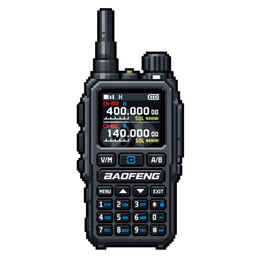
UV-5R MiniBaofeng
Model type · Locks the transmit bands by changing the model type (CE, EuropeCEGT, etc.) the same way the manufacturer's FreqRangeTool does.
SupportedHow it works
- Plug the USB programming cable into the radio and turn it on.
- Read the current settings and save an original backup file (.img) to your PC. It opens in CHIRP.
- Set the transmit range. On the UV-5R you enter the lower/upper limits; on the UV-K5 series you pick an F-Lock preset.
- Write it to the radio, then read it back to confirm it was saved.
Ground rules we built in
- Nothing beyond the radio's supported range. On the UV-5R you can only enter values within the factory default range, and on the UV-K5 series you can only pick presets within it. “Unlock All” and turning on the extended transmit switches are blocked.
- The write button stays off until you save a backup.
- Only the limits change. On the UV-5R, the values just read are written back as they are with only the limits changed, the same way CHIRP does. On the UV-K5 series, only the 128-byte block that contains F-Lock is written, in the same size CHIRP uses. The calibration area is never touched.
- Nothing unknown gets written. Unconfirmed firmware or memory layouts are read/backup only.
- Tested on real radios. The UV-5R and UV-K5(8) were verified on real hardware with read, write and read-back. For the UV-5R Mini, the manufacturer's tool was analyzed, the same method was used, and the transmit restriction was confirmed on a real radio. Compatible models such as the UV-K6, UV-K1 and RT-590 were confirmed to work the same way by analyzing the manufacturer firmware.
Technical notes
Research into what differs between firmware and memory layouts for each radio.
UV-5R differences by firmware and memory layout
Where and how the transmit limits are stored depending on the firmware version of Baofeng UV-5R radios, and how RadioCloud handles each case.
Updated 2026-10-09 · Korean onlyUV-K5 series: compatible models and F-Lock differences by firmware
How the F-Lock value is interpreted by different firmware on the Quansheng UV-K5(8), UV-K6, UV-K1, UV-5R Plus and related radios such as the Radtel RT-590 / RT-600, based on the firmware code.
Updated 2026-10-12 · Korean onlyUV-5R Mini model type and factory area analysis
Where and how the transmit bands (model type) of the Baofeng UV-5R Mini are stored, from an analysis of the manufacturer's FreqRangeTool, and how RadioCloud handles it.
Updated 2026-10-09 · Korean only